
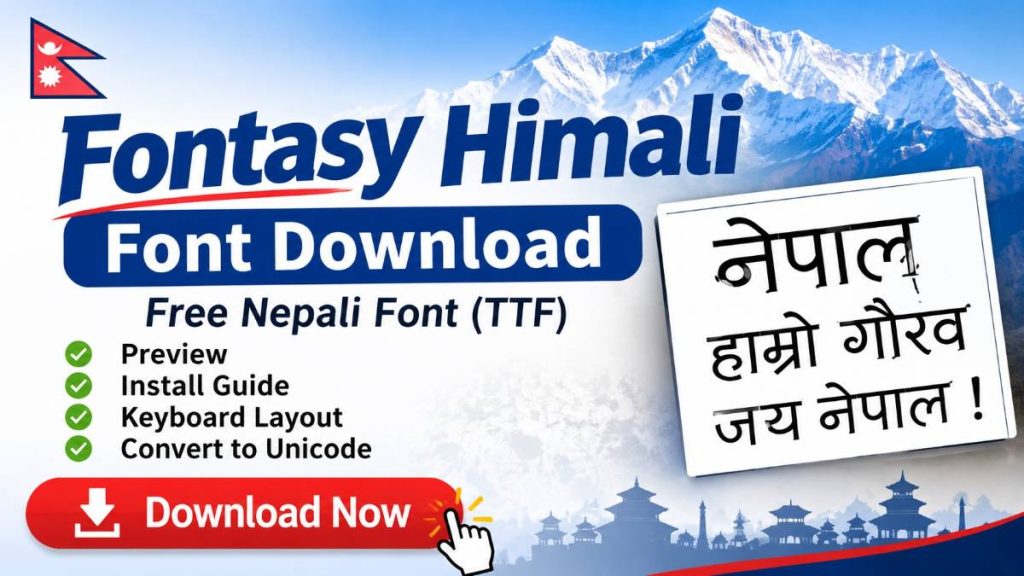
Fontasy Himali Font Download – If you are looking for the Fontasy Himali font to type or view Nepali and Devanagari text on your computer, you can find the font download and installation information here.
Fontasy Himali is a traditional Devanagari typeface associated with older desktop publishing and legacy-font workflows. It is particularly relevant when working with older Nepali documents that were created using non-Unicode fonts.
In this guide, you will learn how to download Fontasy Himali, install it on Windows, use it in Microsoft Word, understand its keyboard mapping and troubleshoot common font-related problems.
Fontasy Himali Font Download
You can obtain the Fontasy Himali TrueType font from the following government-hosted resource.
Font details
| Property | Information |
|---|---|
| Font name | Fontasy Himali |
| Font format | TrueType Font (.TTF) |
| Font style | Regular |
| Script | Devanagari |
| Font category | Legacy font |
| Platform | Desktop applications |
Download: Download Fontasy Himali TTF
Note: Check the downloaded file’s font metadata to confirm that it is the intended Fontasy Himali version. Different archives may contain similarly named files.
What Is Fontasy Himali Font?
Fontasy Himali is a traditional Devanagari font used for displaying Nepali and other Devanagari-script text.
The font is associated with older desktop publishing systems. Font archives attribute its historical metadata to M. Frank and R. Josephson, with a version date of March 29, 1993.
Unlike modern Unicode fonts, legacy fonts use specific character-to-glyph mappings. This means the characters typed using a particular keyboard layout may only display correctly when the corresponding font is installed.
Fontasy Himali is therefore useful when working with compatible older documents, typing systems and publishing workflows.
Is Fontasy Himali a Unicode Font?
No. Fontasy Himali belongs to the legacy-font category, not the modern Unicode category.
This is an important distinction when preparing Nepali documents.
Unicode stores actual Nepali characters. For example, the word नेपाल is represented by its corresponding Unicode characters.
Legacy fonts use a different system in which keyboard characters are mapped to visual Nepali glyphs.
Consider these differences:
| Feature | Fontasy Himali | Nepali Unicode |
|---|---|---|
| Character encoding | Legacy mapping | Unicode |
| Special font required | Yes | Not necessarily |
| Web compatibility | Limited | Excellent |
| Search engine readability | Limited | Excellent |
| Older document compatibility | Depends on font | Requires conversion if legacy encoded |
| Mobile compatibility | Limited | Broad |
If you are creating a new website, online application or document that needs to work across different devices, Unicode is generally the better choice.
However, if you need to open or edit an existing Fontasy Himali document, installing the matching font may be necessary.
How to Install Fontasy Himali Font on Windows 10 and Windows 11
Installing a TrueType font on Windows is straightforward.
Follow these instructions:
- Download the Fontasy Himali TTF file.
- Open the folder containing the downloaded file.
- Locate the
.ttffont file. - Right-click the font file.
- Select Install or Install for all users if available.
- Wait for Windows to complete the installation.
Alternatively, double-click the TTF file to open its font preview and select Install.
After installation, restart Microsoft Word or any other application that was already running.
How to Use Fontasy Himali in Microsoft Word
After installing the font, you can select it from the font list in Microsoft Word.
- Open Microsoft Word.
- Create a new document.
- Select the text you want to format, or place your cursor where you want to type.
- Open the font selection menu.
- Search for Fontasy Himali.
- Select the font.
- Type using the corresponding Fontasy Himali keyboard mapping.
Important: Selecting Fontasy Himali as your font does not automatically enable Nepali Unicode typing. You must use a compatible legacy keyboard layout or work with text that has already been encoded for this font.
If you paste ordinary Unicode Nepali text into a legacy font, the output may not display correctly.
Fontasy Himali Keyboard Layout
A keyboard layout determines which keyboard keys correspond to particular Nepali characters and glyphs.
Fontasy Himali and Fontasy Himali TT may have different mappings depending on the particular font file and typing system.
Before using a keyboard layout, make sure it matches your installed font version.
A useful keyboard reference should include:
- Number-row character mappings.
- Uppercase and lowercase English-key mappings.
- Special characters and punctuation.
- Conjunct characters and vowel signs.
- Frequently used Nepali characters.
Tip: Do not assume that the Preeti keyboard layout will work correctly with Fontasy Himali. Use the appropriate Fontasy Himali mapping.
Fontasy Himali vs Preeti vs Nepali Unicode
These fonts and typing systems serve different purposes.
Fontasy Himali: A traditional legacy Devanagari font used in older desktop publishing workflows.
Preeti: Another widely encountered legacy Nepali font, particularly in older documents, printing and office workflows.
Nepali Unicode: A modern character-encoding system that stores actual Nepali characters and supports cross-platform communication.
If you are editing an existing document, identify the font used to create it before attempting to change its formatting.
If you are preparing a new document for online publication, Unicode is usually preferable.
How to Convert Fontasy Himali Text to Unicode
If you have an old document written in Fontasy Himali, you may want to convert its text into Unicode.
Installing a Unicode font alone will not perform this conversion.
You need a legacy-font-to-Unicode converter that supports the exact Fontasy Himali mapping used in your document.
The general process is:
- Open a compatible Fontasy Himali to Unicode converter.
- Copy the legacy-encoded text from your document.
- Paste it into the converter’s input field.
- Select the Fontasy Himali conversion option, if available.
- Convert the text.
- Check the resulting Unicode text for spelling and formatting errors.
- Copy the converted text into your new document.
Conversion accuracy depends on the mapping used by the original font. Always compare the converted result against the original document, especially for official records and important documents.
| Kantipur To Unicode Converter | Preeti To Unicode Converter |
| Unicode To Preeti Converter | English To Nepali Text Converter |
| Convert Nepali Date into English | Age Calculator Nepali |
| Convert Unicode to Preeti | Preeti To Unicode Converter |
| Fixed Deposit Calculator | EMI Calculator |
Common Fontasy Himali Font Problems and Solutions
1. Fontasy Himali is not appearing in Microsoft Word
Solution: Make sure the TTF file was installed successfully. Close and reopen Microsoft Word. You can also check the installed fonts in Windows Settings.
2. Nepali text appears incorrectly
Solution: Check whether the text was originally typed using Fontasy Himali or another legacy font. The wrong font mapping can produce incorrect characters.
3. Unicode Nepali text is not displaying properly
Solution: Remember that installing a legacy font does not make it a Unicode font. Use a Unicode-compatible Devanagari font for Unicode text.
4. The document looks different on another computer
Solution: Install the same font version on the other computer. If the document uses legacy character mappings, changing the font can completely change the displayed text.
5. The font does not appear in the installation folder
Solution: Check the downloaded file extension. It should be a valid TTF font file. If it is inside a ZIP archive, extract it before installation.
Frequently Asked Questions
Is Fontasy Himali free to download?
Fontasy Himali is available through several free font archives and government-hosted download resources. However, free availability does not automatically establish unrestricted commercial-use rights. Check the licence information accompanying the exact font file.
Is Fontasy Himali compatible with Windows 11?
Windows 11 supports TrueType fonts. A valid Fontasy Himali TTF file can generally be installed through the Windows font installation interface. Its typing functionality still depends on the appropriate character mapping.
Can I use Fontasy Himali in Microsoft Word?
Yes. Once installed, the font should appear in Microsoft Word’s font selection list. You must also use compatible legacy-encoded text or its corresponding keyboard layout.
Can I type Nepali directly using Fontasy Himali?
Yes, provided you use a compatible keyboard mapping or typing application. Installing the font alone does not provide a Nepali keyboard.
Is Fontasy Himali the same as Fontasy Roman Himali?
They are listed as separate font names in some Nepali font archives. Do not assume that their keyboard mappings or font files are interchangeable.
Can I convert Fontasy Himali text into Unicode?
Yes, provided you have a converter that supports the relevant Fontasy Himali mapping. Always proofread the converted output.
Does Fontasy Himali work on mobile phones?
Fontasy Himali is primarily intended for desktop font workflows. Mobile support depends on the operating system and application. For sharing Nepali text across phones, Unicode is a more reliable choice.
Conclusion
Fontasy Himali remains a useful resource for people working with older Nepali documents and legacy Devanagari typography.
If you need to edit an existing document, make sure you install the correct font version and use its corresponding keyboard mapping. For modern digital communication, websites and mobile applications, Nepali Unicode is generally the more suitable option.
Download the font, install it on your computer and use the appropriate typing layout for your document.